
Appearance
Searching the Archive
Open Archiver provides full-text search across every archived email — subjects, bodies, sender and recipient addresses, and the content of common attachment types (PDF, DOCX, XLSX, and more). This guide covers both simple keyword search and the advanced filters.
Search results always respect your permissions: you only ever see emails your role grants access to.
Keyword search
Type keywords into the search bar on Dashboard → Search and press Enter. Matching terms are highlighted in the results, including matches inside attachments.
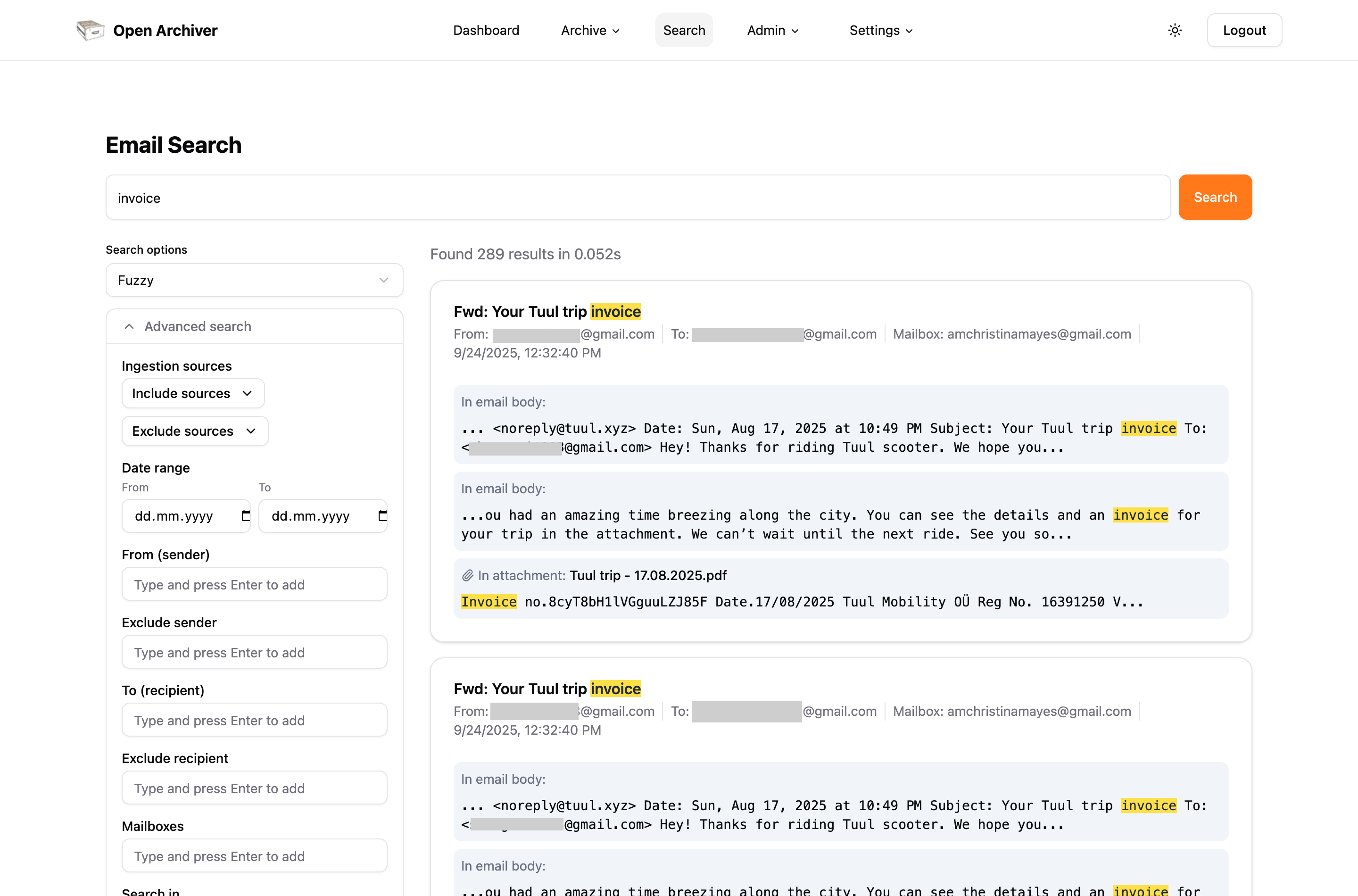
Three matching strategies are available next to the search bar:
- Fuzzy (default) — results contain at least one of your keywords; more matches rank higher.
- Verbatim — results must contain all keywords.
- Frequency — results rank by how often the keywords appear.
Advanced search
Click Advanced search below the search bar to open the filter panel. Filters combine with your keywords — and with each other — using AND logic: an email must satisfy every active filter. Within a single filter, multiple values are OR-combined (any of them matches).
Keywords become optional once at least one filter is active, so filters can also be used to browse the archive without a search term.
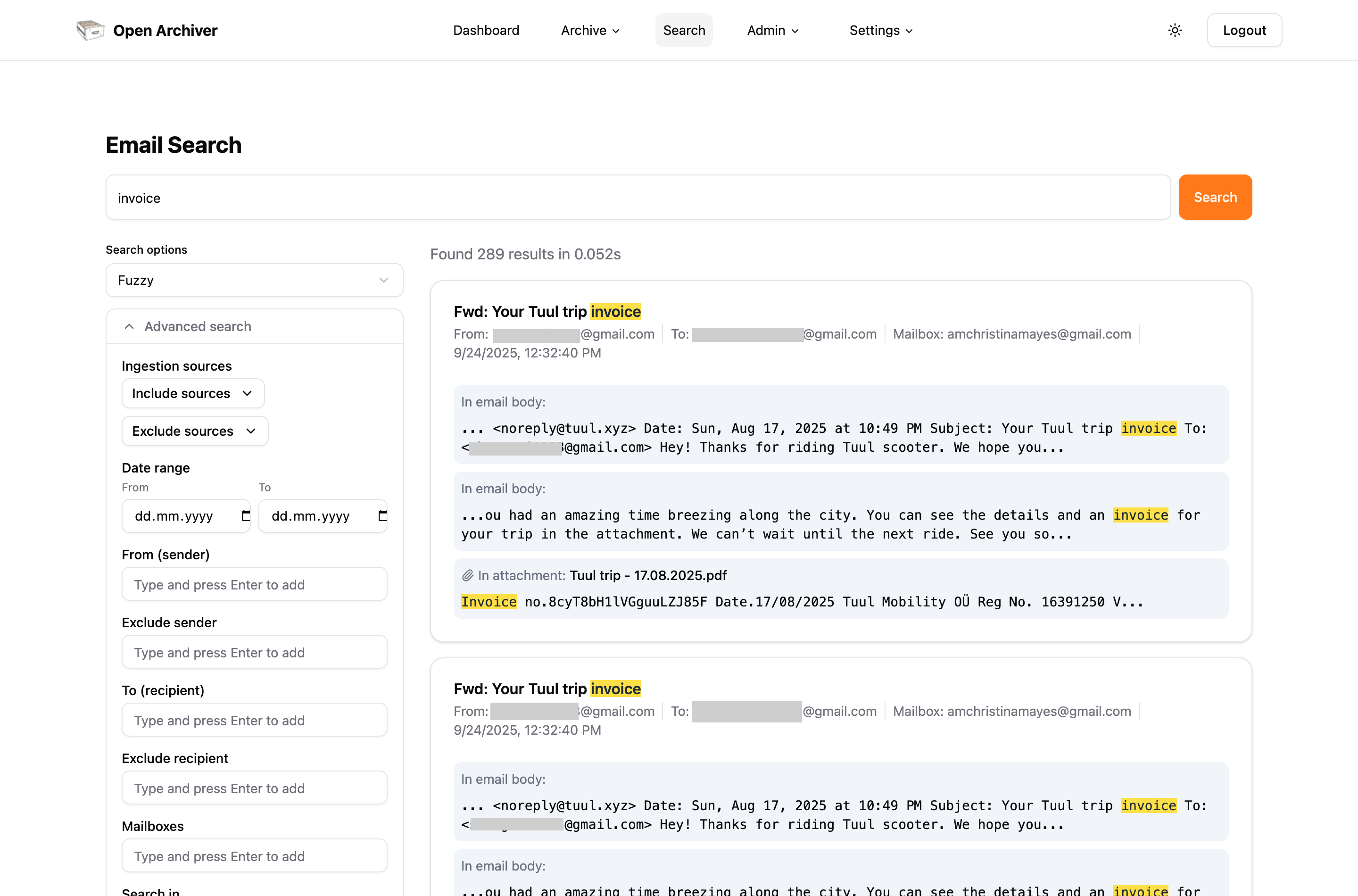
Ingestion sources
Limit the search to specific ingestion sources, or exclude specific sources. Selecting a merged ingestion automatically covers its whole merge group. This control only appears when your role can list ingestion sources.
Sender and recipient
- From (sender) — only emails sent from these addresses.
- Exclude sender — hide emails sent from these addresses.
- To (recipient) — only emails where any of these addresses appears in To, Cc, or Bcc.
- Exclude recipient — hide emails where any of these addresses appears in To, Cc, or Bcc.
- Mailboxes — only emails archived from these mailbox accounts. As you type, matching mailbox addresses are suggested (only ones you're allowed to search); pick one, or press Enter to add what you typed.
Type an address and press Enter (or comma) to add it as a chip; add as many as needed.
Wildcards. Every address filter above also accepts two patterns: *@example.com matches every address at that domain, and name@* matches that name at any domain. They work in the exclude filters too, so *@newsletter.example.com under Exclude sender hides everything that domain sends. A * anywhere else (such as *invoice*) is not supported. The patterns apply to mail indexed from v0.6.1 on; a Full rebuild on Admin → Index applies them to older mail.
Date range
Pick a start and end date to restrict results to emails sent within that range. Both bounds are inclusive and interpreted in UTC.
Search in
By default, keywords match everywhere. Tick one or more boxes to restrict matching to specific parts of the email:
- Subject — subject line only.
- Body — message text only.
- Attachment name — attachment file names only.
- Attachment content — extracted text inside attachments only.
- Sender — the sender's address and display name.
- Recipients — To, Cc, and Bcc addresses.
For example, keywords invoice with only Attachment name ticked finds emails that have an attachment named like invoice.pdf, without matching every email whose attachment text merely mentions "invoice".
Attachments filter
Restrict results to emails with or without attachments.
Reindex note
Emails archived before this feature existed need a one-time reindex before they are counted as "with attachments" — see Search Indexing & Reindexing. Until then, such emails are treated as attachment-less by this filter.
Sorting
- Newest first (default) / Oldest first — sort by sent date.
- Relevance — sort by search-ranking quality instead of date.
Opening a result
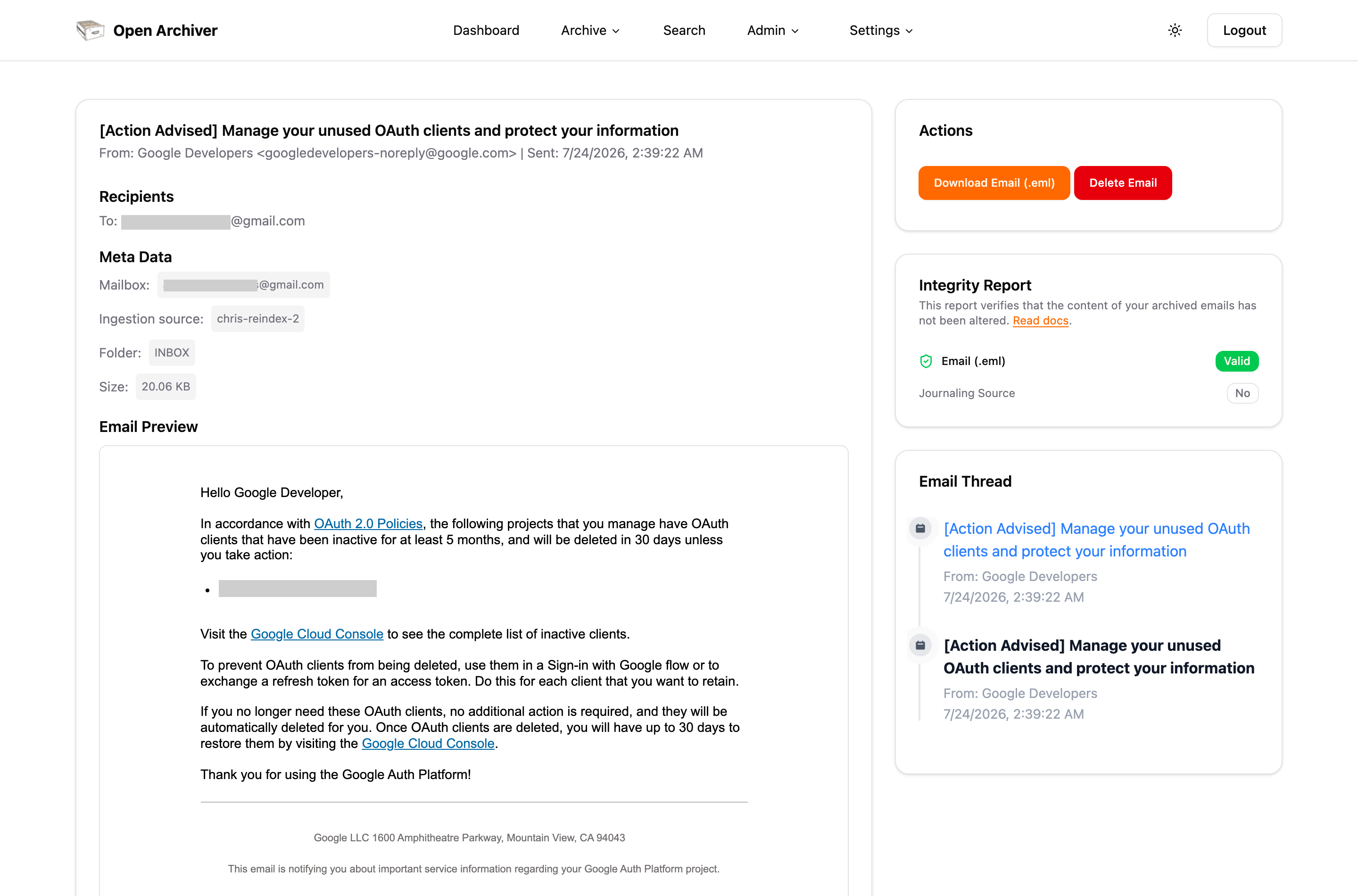
Click any result to open the full email. The detail view shows the message body, its recipients, and a metadata panel with the mailbox it was archived from and a link to its ingestion source, alongside the integrity report and the rest of the email thread.
Shareable searches
The full search state — keywords, strategy, and every filter — lives in the page URL. Bookmark it, share it, or keep it in a browser tab: reloading reproduces the identical search, and pagination preserves all active filters.
Searching via the API
Everything above is available programmatically through GET /v1/search, using the same parameters the UI produces (sources, excludeSources, from, notFrom, to, notTo, mailboxes, dateFrom, dateTo, searchIn, hasAttachments, sort). See the Search API reference for the full parameter documentation.
The mailbox and sender autocomplete is backed by GET /v1/search/facets, which returns permission-scoped, prefix-matched suggestions for a facet field — see Suggest Facet Values.
Example — invoices from a specific sender in Q1 2025, searching only attachments:
GET /v1/search?keywords=invoice&[email protected]&dateFrom=2025-01-01&dateTo=2025-03-31&searchIn=attachment_name,attachment_content