Appearance
PST Import
OpenArchiver allows you to import PST files. This is useful for importing emails from a variety of sources, including Microsoft Outlook.
Preparing the PST File
To ensure a successful import, you should prepare your PST file according to the following guidelines:
- Structure: The PST file can contain any number of emails, organized in any folder structure. The folder structure will be preserved in OpenArchiver, so you can use it to organize your emails.
- Password Protection: OpenArchiver does not support password-protected PST files. Please remove the password from your PST file before importing it.
Creating a PST Ingestion Source
Go to the Ingestion Sources page in the OpenArchiver dashboard.
Click the Create New button.
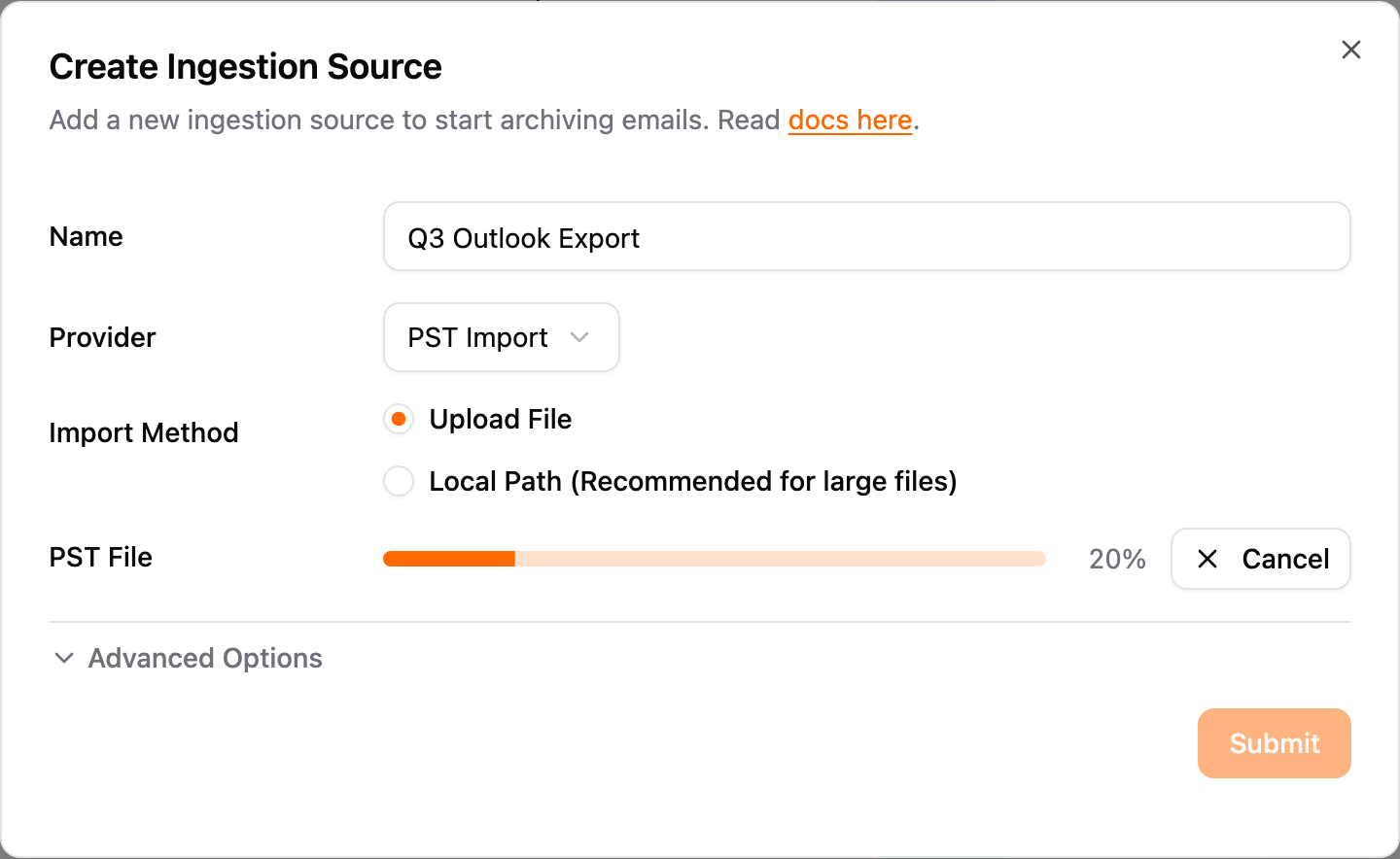
Select PST Import as the provider.
Enter a name for the ingestion source.
Choose Import Method:
- Upload File: Click Choose File and select the PST file from your computer. (Best for smaller files)
- Local Path: Enter the path to the PST file inside the container. (Best for large files)
Note on Local Path: When using Docker, the "Local Path" is relative to the container's filesystem.
- Recommended: Place your file in a
tempfolder inside your configured storage directory (STORAGE_LOCAL_ROOT_PATH). This path is already mounted. For example, if your storage path is/data, put the file in/data/temp/archive.pstand enter/data/temp/archive.pstas the path. - Alternative: Mount a separate volume in
docker-compose.yml(e.g.,- /host/path:/container/path) and use the container path.
Click the Submit button.
Upload feedback: When you use the Upload File method, a progress bar shows the upload percentage while the file transfers, and a Cancel button lets you stop an in-progress upload. Once the upload finishes, a success panel confirms the stored file name and its path; if the upload fails, an error panel shows the reason so you can fix it and try again.
OpenArchiver will then start importing the emails from the PST file. The ingestion process may take some time, depending on the size of the file.