Appearance
Mbox Ingestion
Mbox is a common format for storing email messages. This guide will walk you through the process of ingesting mbox files into OpenArchiver.
1. Exporting from Your Email Client
Most email clients that support mbox exports will allow you to export a folder of emails as a single .mbox file. Here are the general steps:
- Mozilla Thunderbird: Right-click on a folder, select ImportExportTools NG, and then choose Export folder.
- Gmail: You can use Google Takeout to export your emails in mbox format.
- Other Clients: Refer to your email client's documentation for instructions on how to export emails to an mbox file.
2. Uploading to OpenArchiver
Once you have your .mbox file, you can upload it to OpenArchiver through the web interface.
Navigate to the Ingestion page.
Click on the New Ingestion button.
Select Mbox as the source type.
Choose Import Method:
- Upload File: Upload your
.mboxfile. - Local Path: Enter the path to the mbox file inside the container.
Note on Local Path: When using Docker, the "Local Path" is relative to the container's filesystem.
- Recommended: Place your mbox file in a
tempfolder inside your configured storage directory (STORAGE_LOCAL_ROOT_PATH). This path is already mounted. For example, if your storage path is/data, put the file in/data/temp/emails.mboxand enter/data/temp/emails.mboxas the path. - Alternative: Mount a separate volume in
docker-compose.yml(e.g.,- /host/path:/container/path) and use the container path.
- Upload File: Upload your
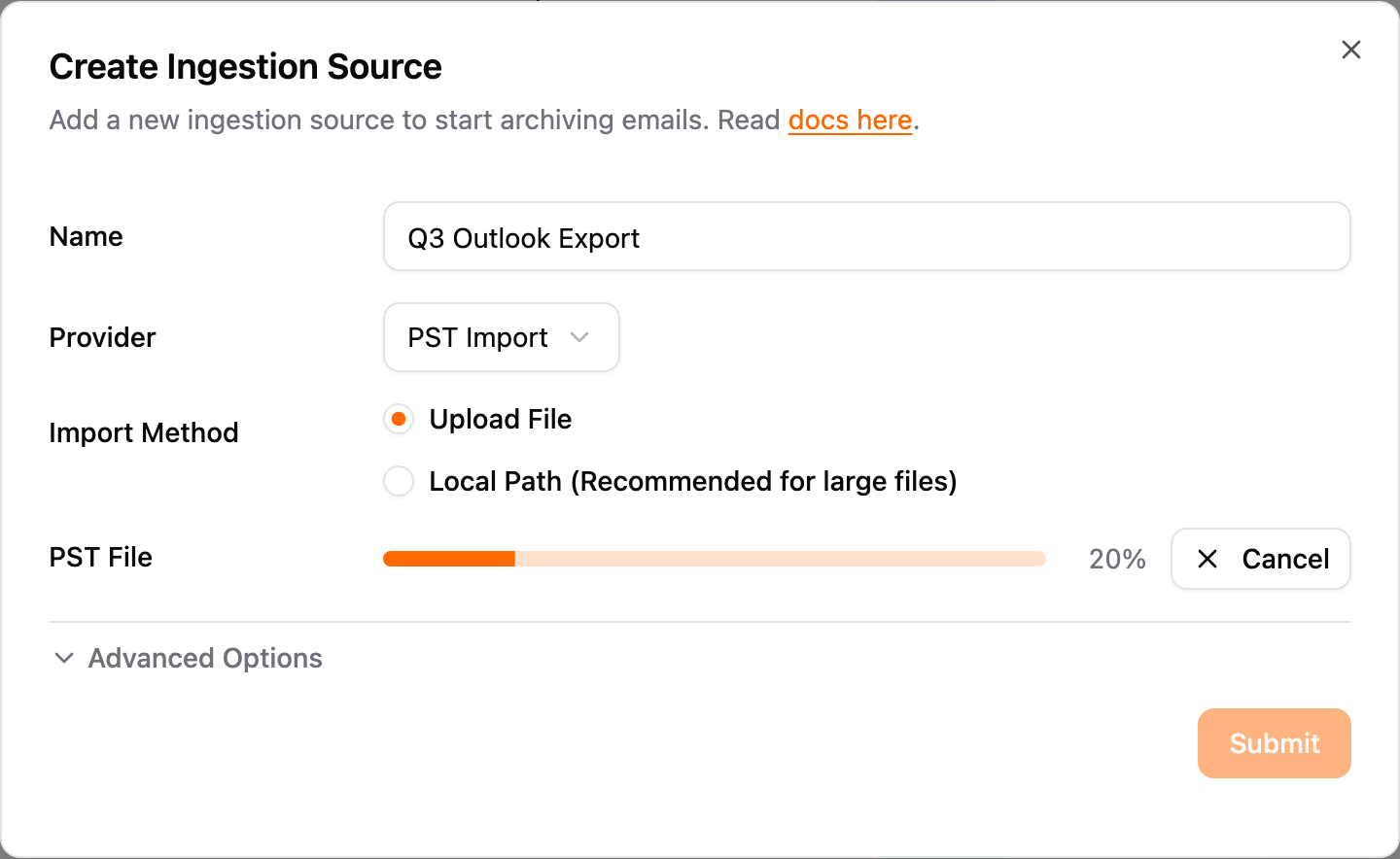
Upload feedback: When you use the Upload File method, a progress bar shows the upload percentage while the file transfers, and a Cancel button lets you stop an in-progress upload. Once the upload finishes, a success panel confirms the stored file name and its path; if the upload fails, an error panel shows the reason so you can fix it and try again.
3. Folder Structure
OpenArchiver will attempt to preserve the original folder structure of your emails. This is done by inspecting the following email headers:
X-Gmail-Labels: Used by Gmail to store labels.X-Folder: A custom header used by some email clients like Thunderbird.
If neither of these headers is present, the emails will be ingested into the root of the archive.